How to Troubleshoot Common Computer Problems
Diagnose and fix everyday computer issues — from slow performance and freezing to connectivity problems and software errors.
Things You'll Need
- Antivirus software
- System information tool
- Flash drive for backup
- Phillips screwdriver
Steps
-
1
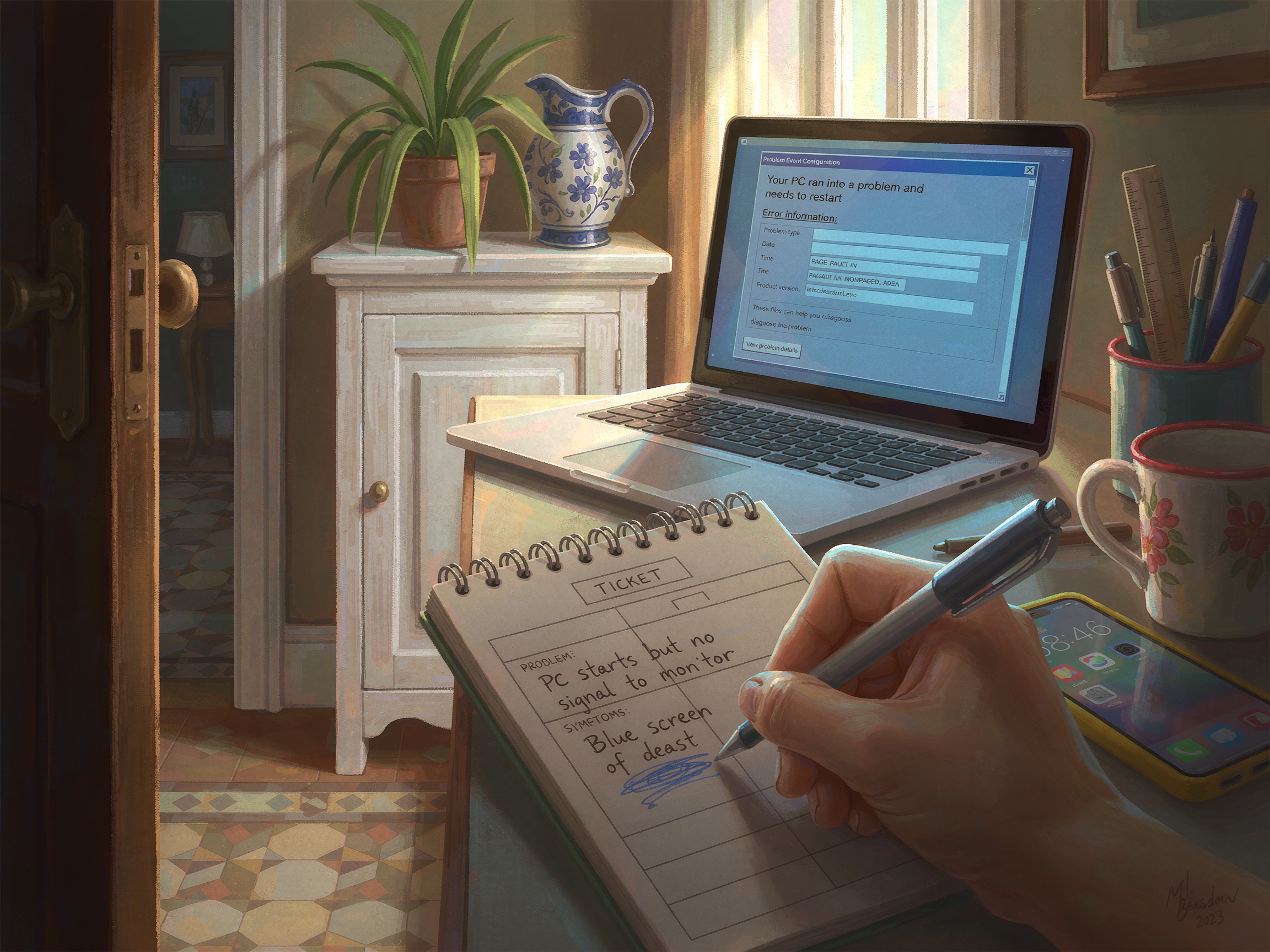
Identify the Problem
Write down exactly what is happening — error messages, freezes, slowness, or unusual sounds. Note when it started and what you were doing.
-
2
Restart the Computer
The simplest fix is often the best. Save your work, close all programs, and restart. Many temporary glitches resolve after a fresh boot.
-
3
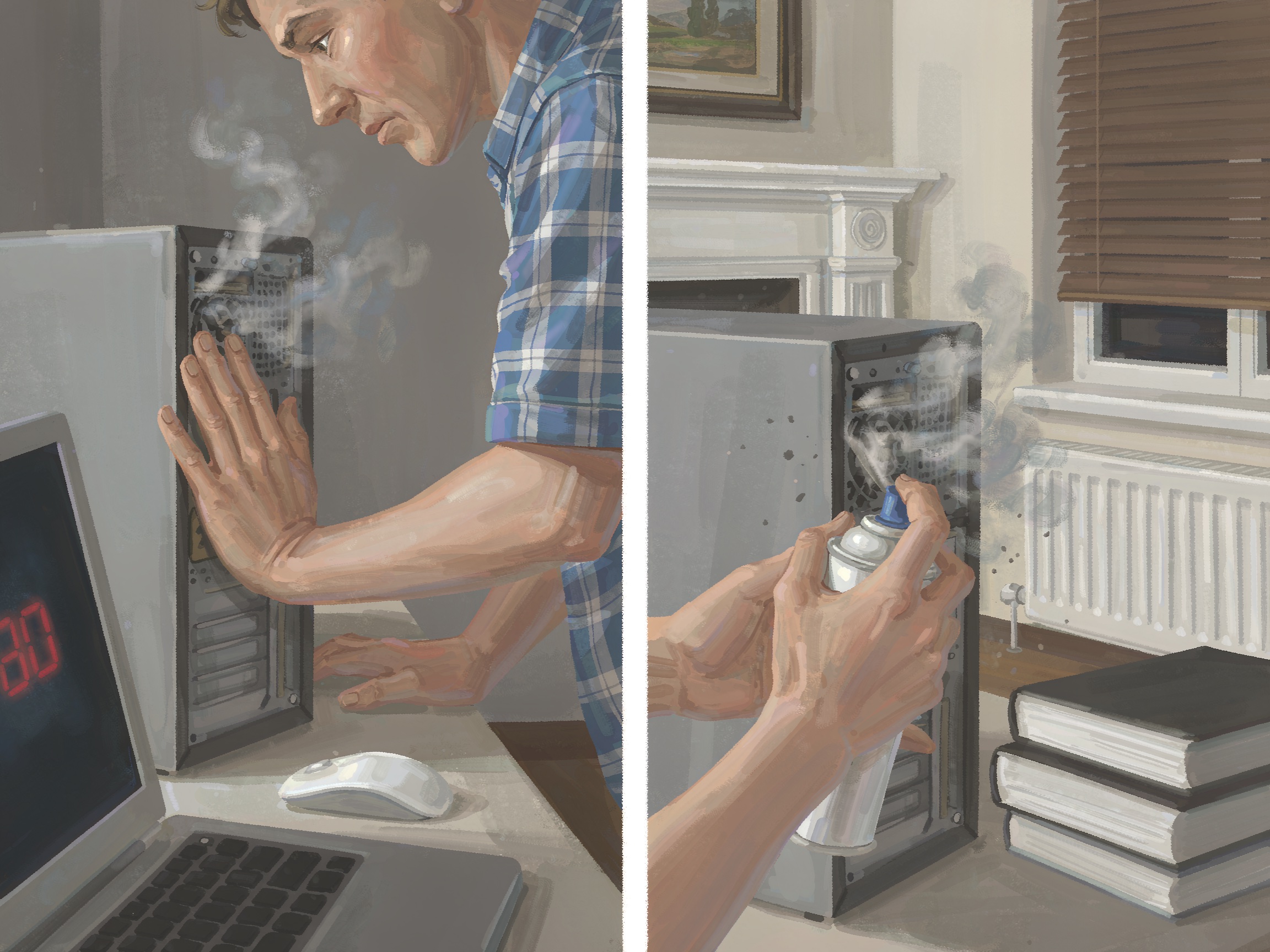
Check for Overheating
Feel the case and listen for loud fans. Overheating causes slowdowns and shutdowns. Clean dust from vents and fans with compressed air.
-
4
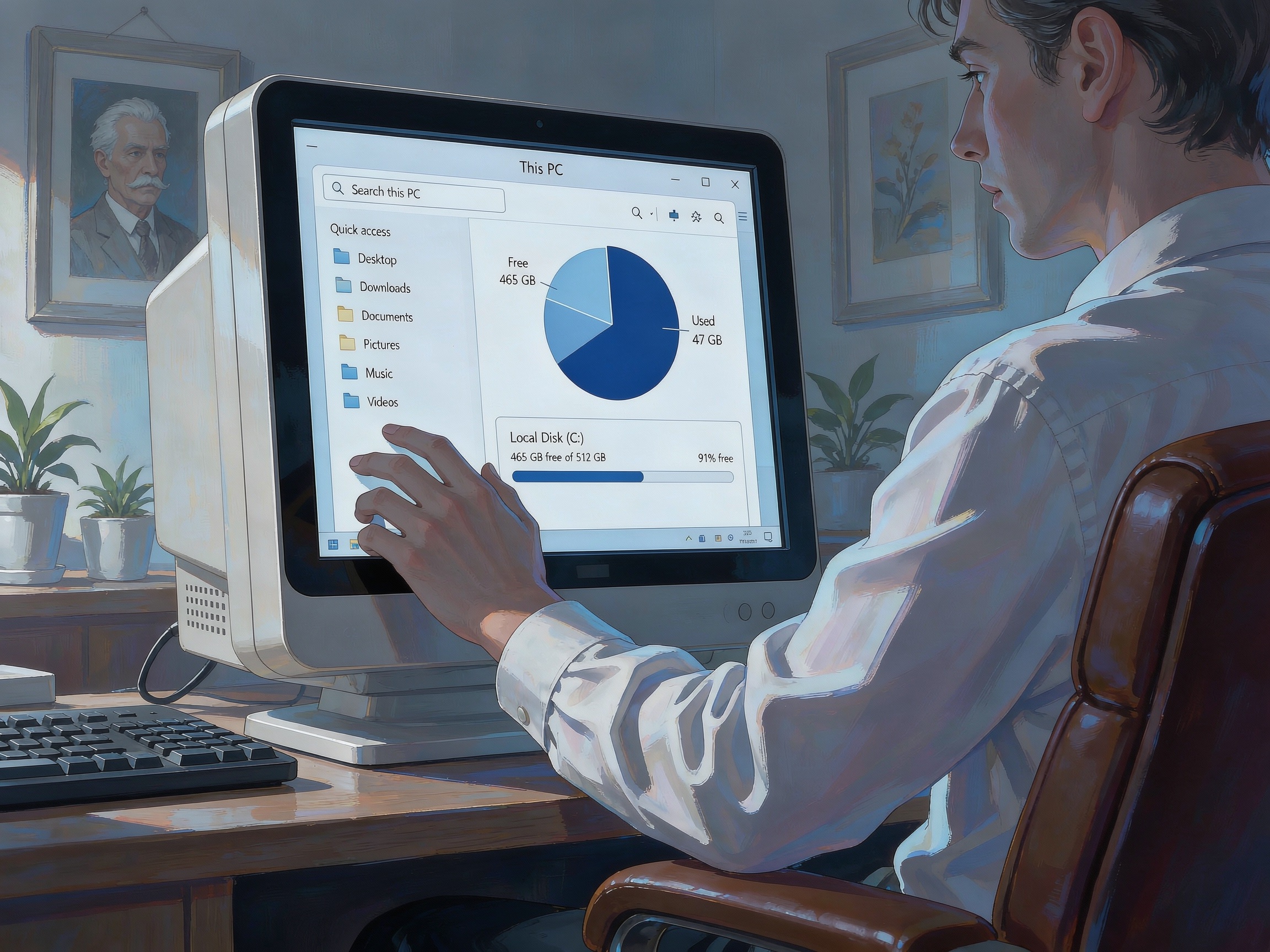
Check Disk Space
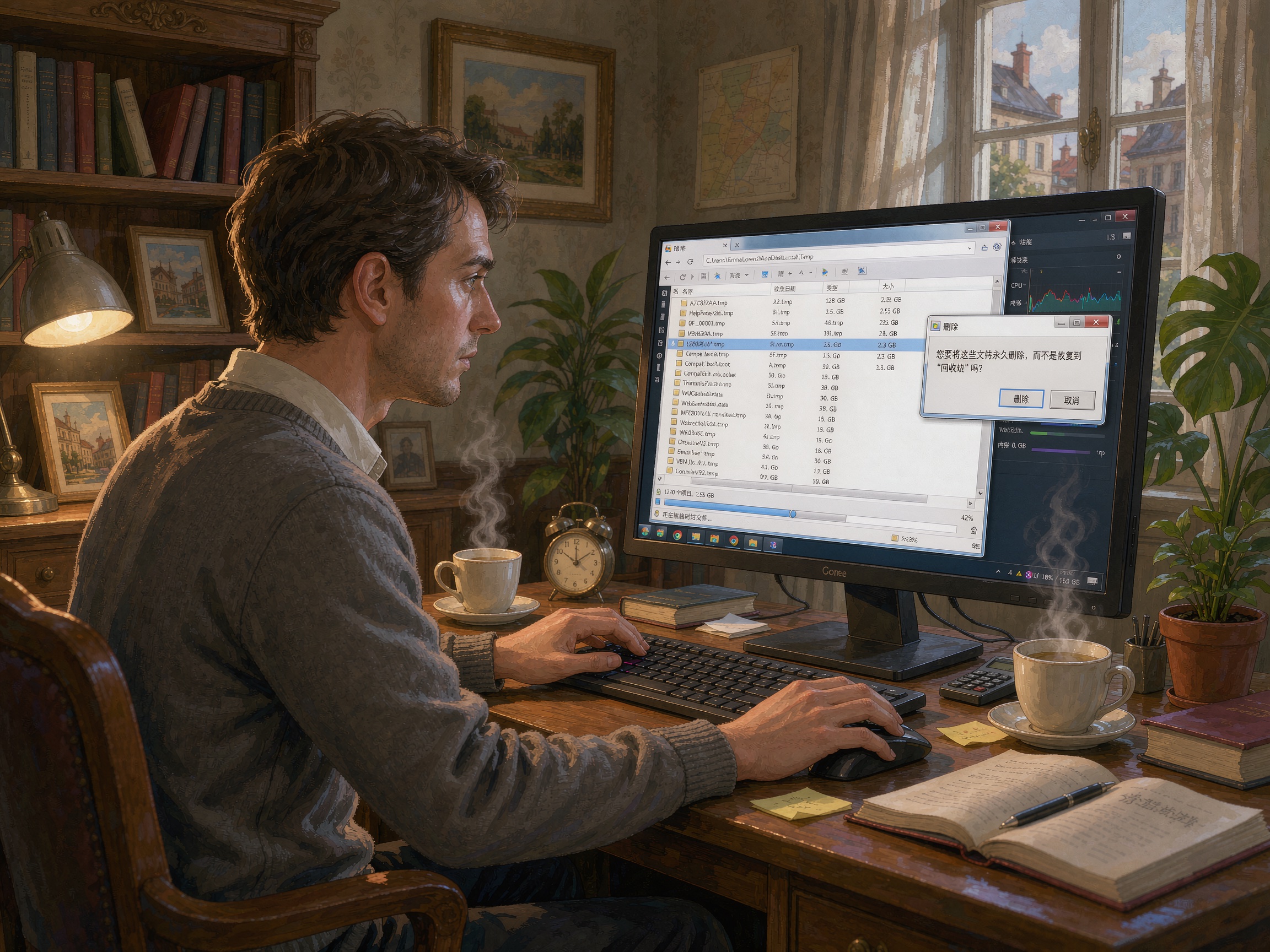
Open File Explorer or Finder and check free storage. If the drive is over 90% full, delete unnecessary files, empty the trash, and uninstall unused programs.
-
5
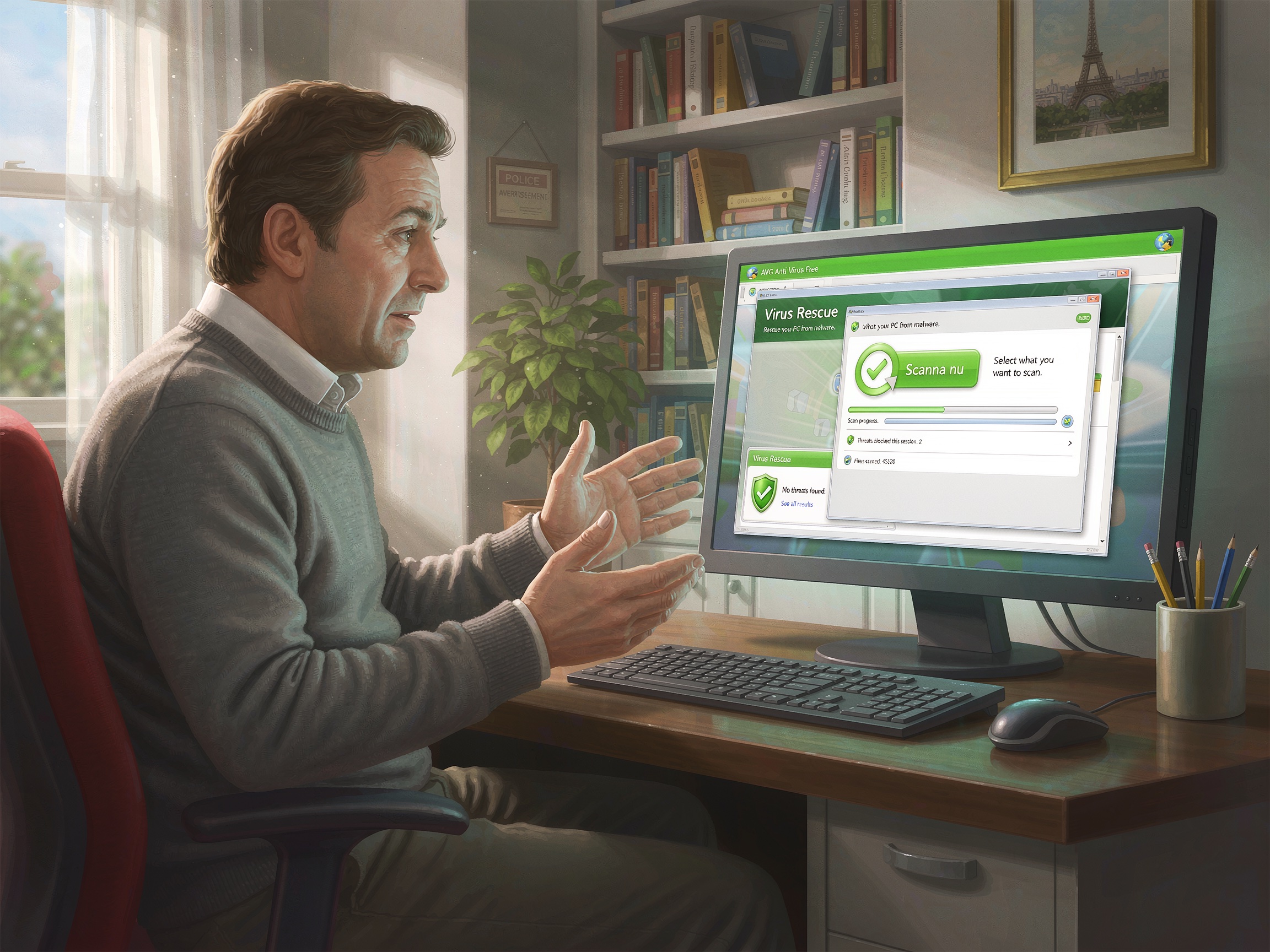
Run a Malware Scan
Use your antivirus software to scan for malware, viruses, and spyware. Malware can significantly slow down your computer and steal personal information.
-
6
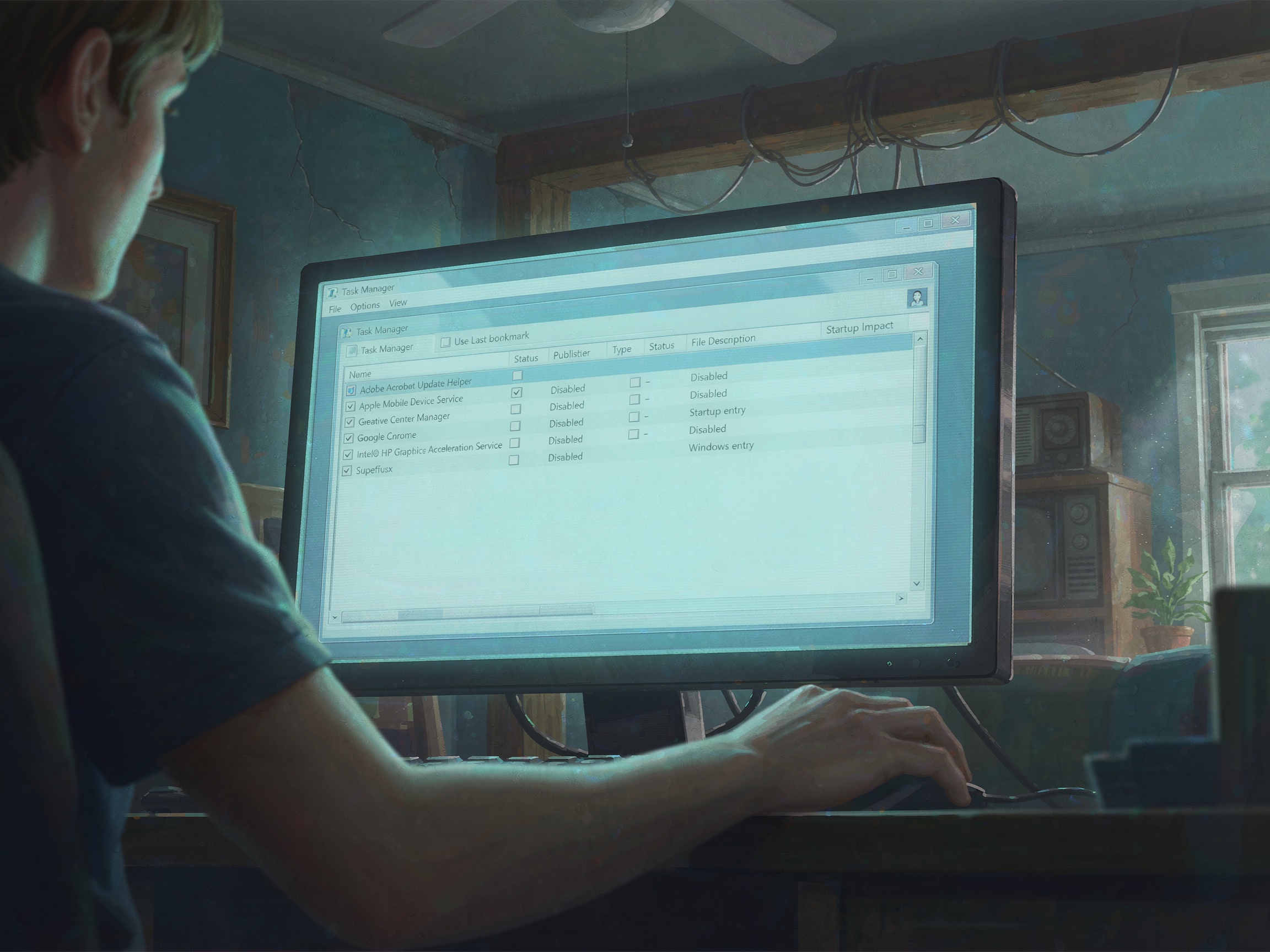
Check Startup Programs
Many programs launch automatically at startup, slowing down boot time. Use Task Manager (Windows) or Activity Monitor (Mac) to disable unnecessary startup items.
-
7
Update Your System
Install Windows or macOS updates and update your drivers. Outdated software can cause compatibility issues and security vulnerabilities.
-
8
Check for Software Conflicts
If a specific program is crashing, try updating it or running it in compatibility mode. Check if other recently installed software coincides with the problem.
-
9
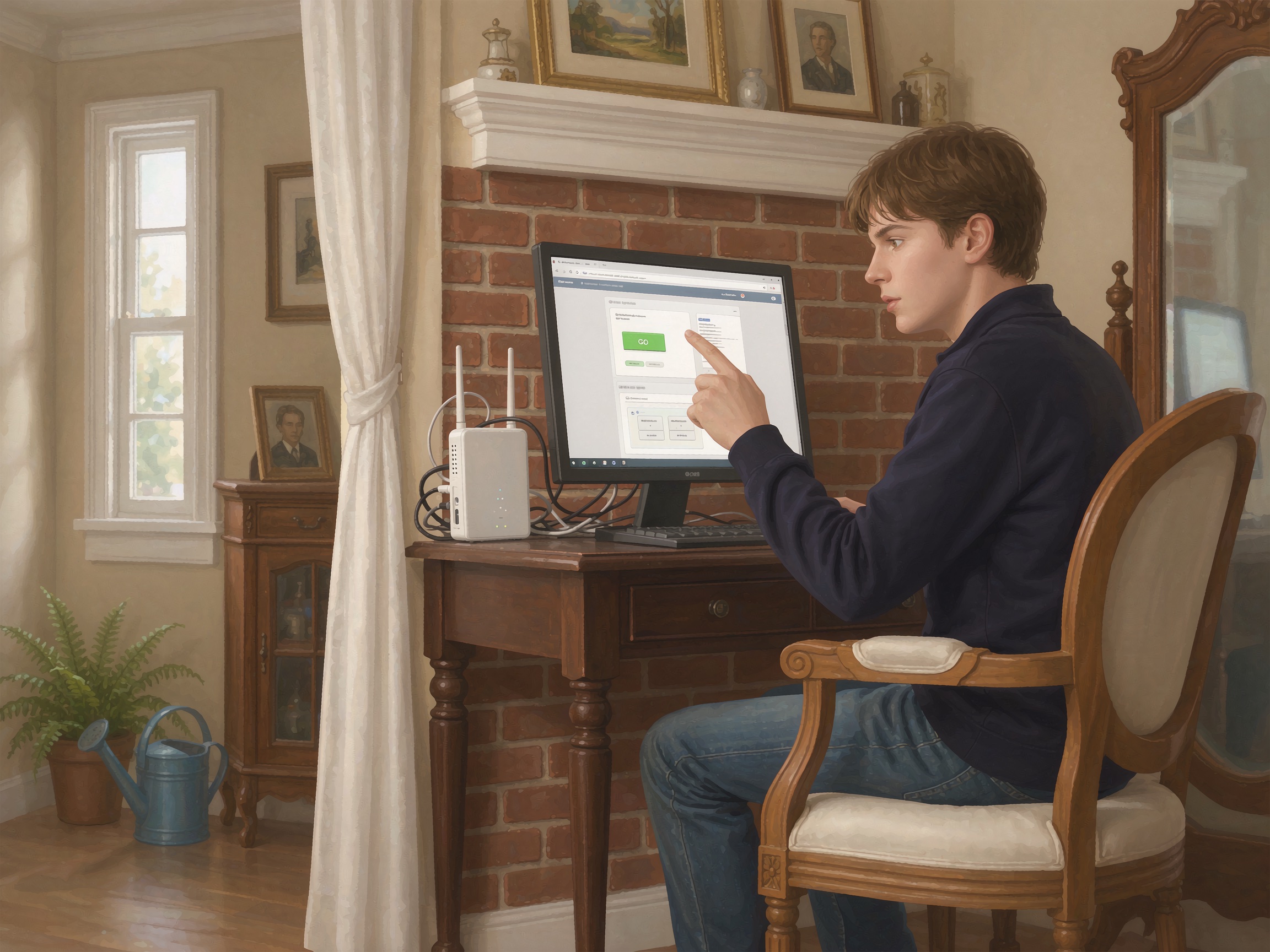
Test Your Internet Connection
If online problems persist, restart your router and modem. Try connecting via Ethernet to rule out Wi-Fi issues. Check if other devices have the same problem.
-
10
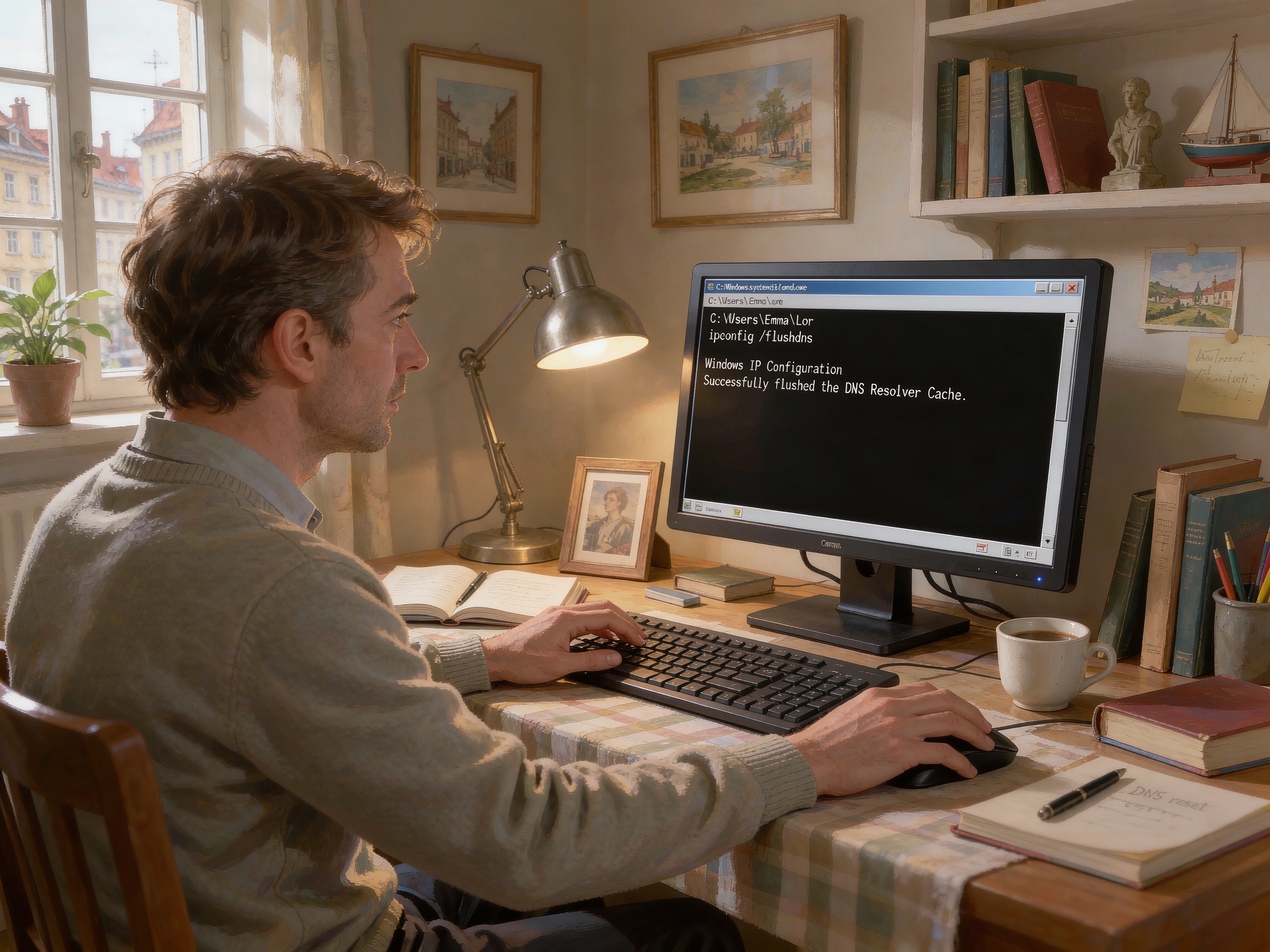
Flush the DNS Cache
Open Command Prompt as administrator and run 'ipconfig /flushdns'. This clears the DNS cache and can resolve website loading issues.
-
11
Reset the TCP/IP Stack
In Command Prompt (admin), run 'netsh int ip reset' and restart. This can fix network connectivity problems.
-
12
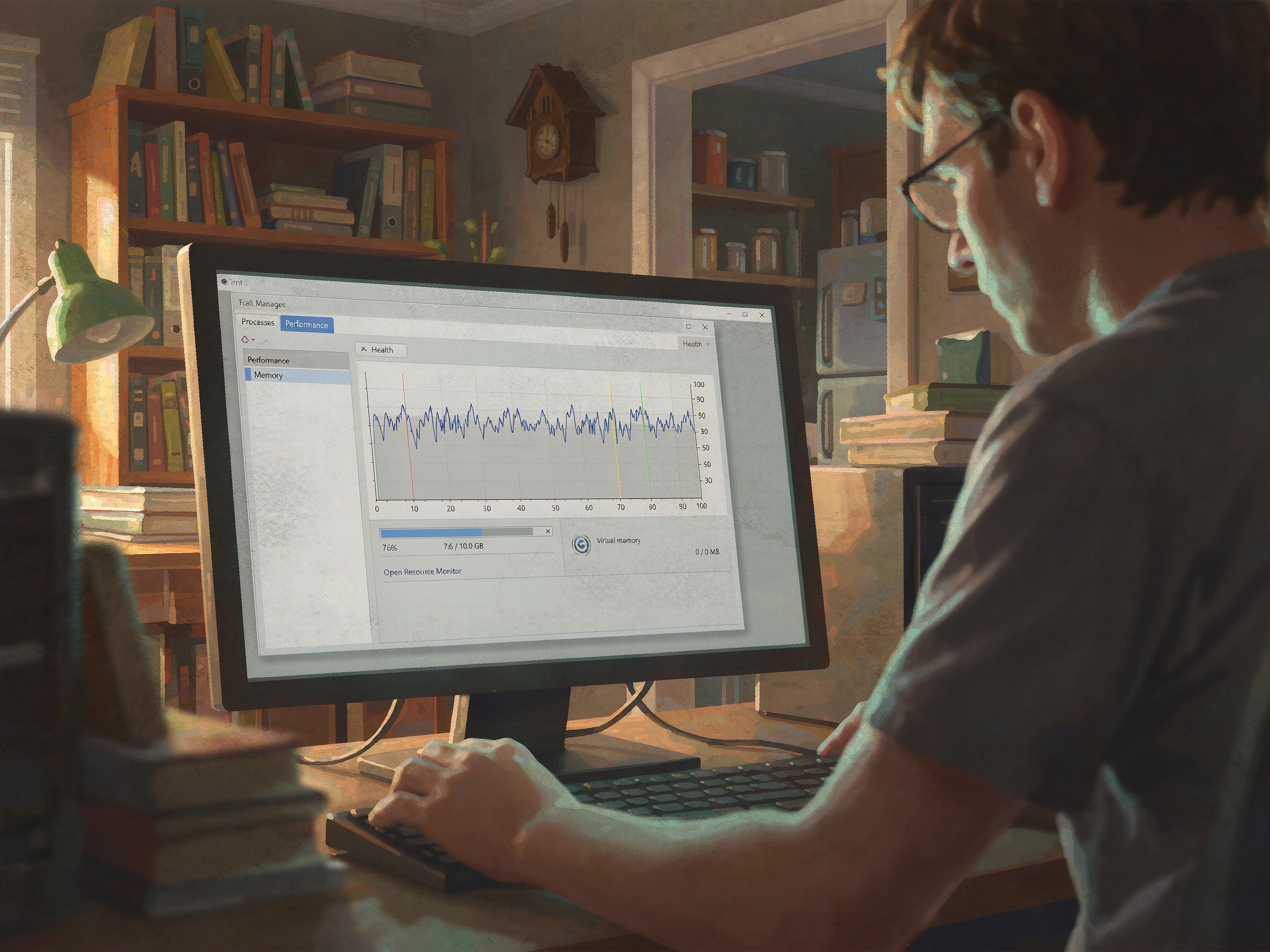
Check RAM Usage
Open Task Manager or Activity Monitor and check memory usage. If RAM is consistently above 90%, consider adding more RAM or reducing background programs.
-
13
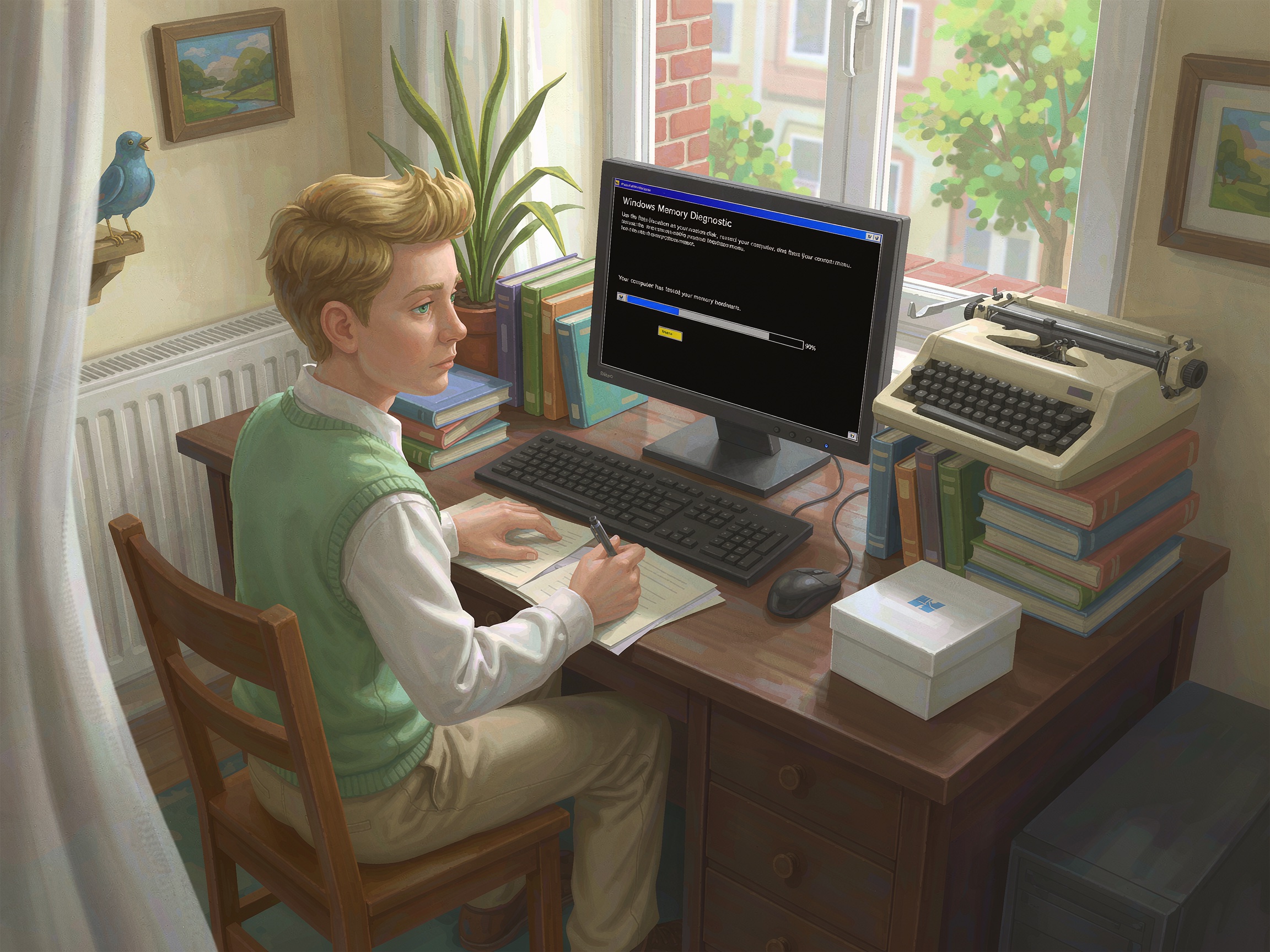
Run System Diagnostics
Use built-in diagnostics — Windows Memory Diagnostic, Mac Disk Utility, or manufacturer tools — to check for hardware issues.
-
14
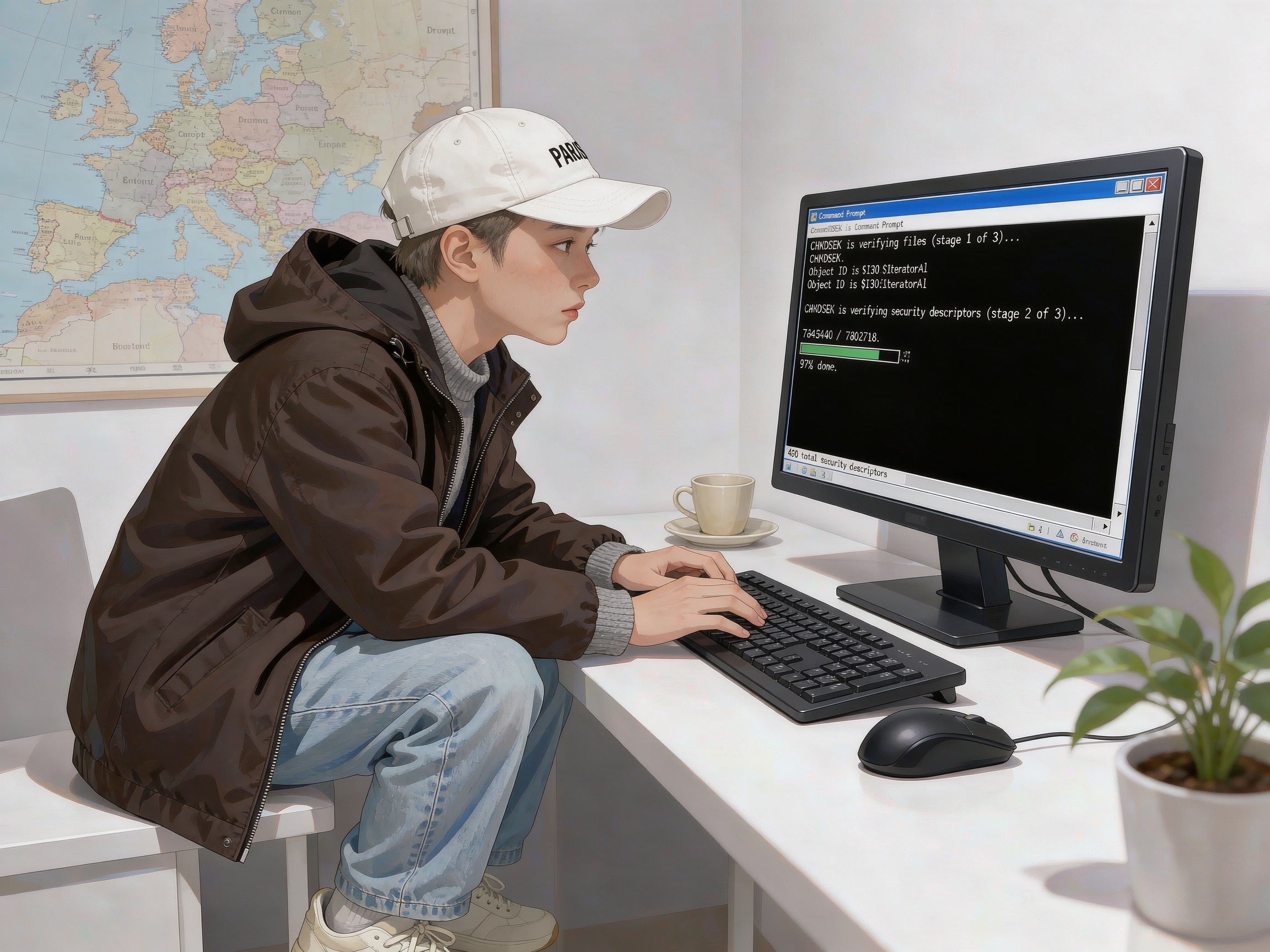
Check the Hard Drive
Run CHKDSK (Windows) or Disk Utility (Mac) to scan for file system errors. If your drive is failing, back up your data immediately and replace it.
-
15
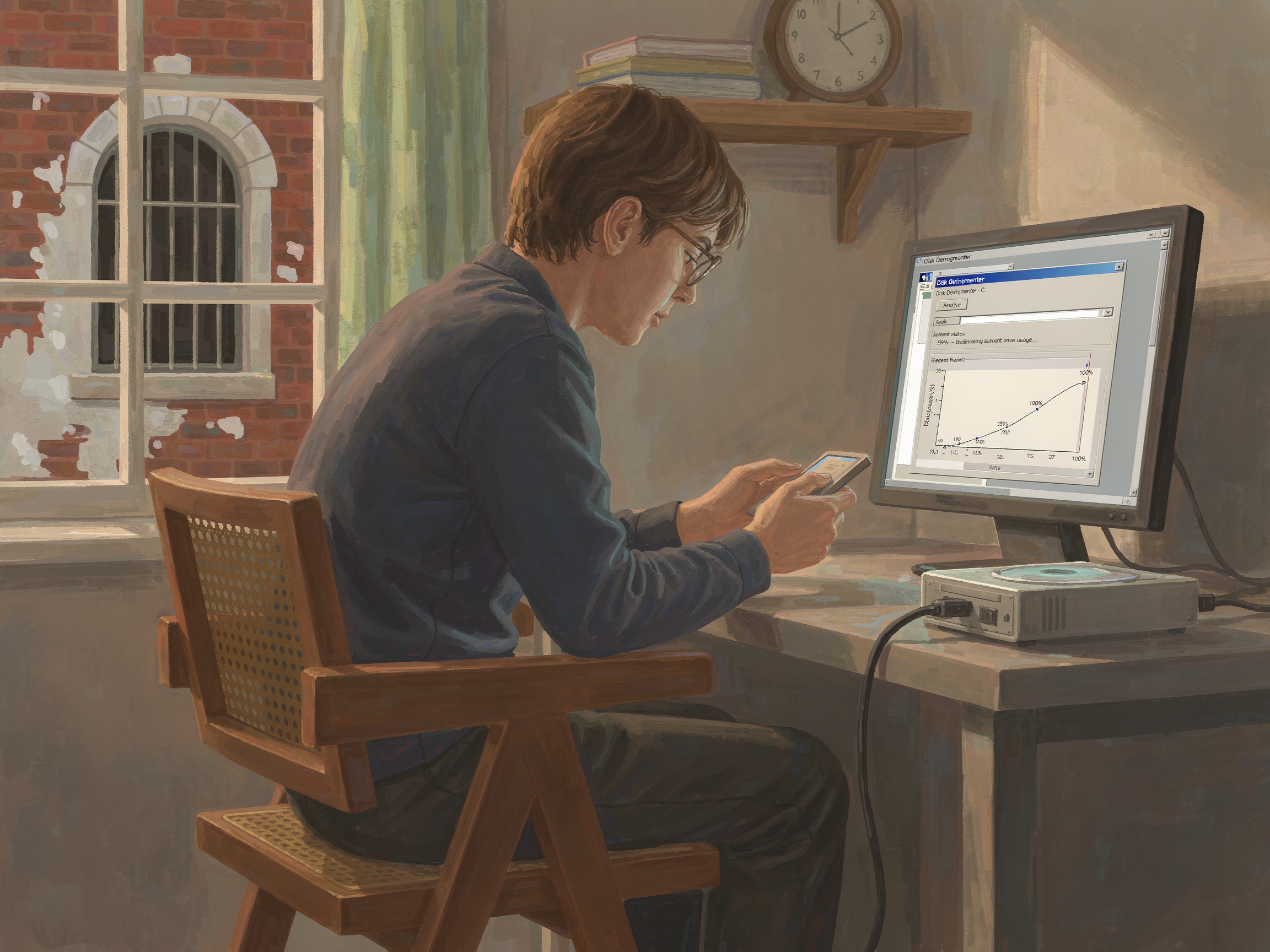
Defragment or Optimize Drive
On older HDDs, run Disk Defragmenter. On SSDs, run the TRIM command through your system tools. This improves file access speeds.
-
16
Uninstall Problematic Software
If a problem started after installing a specific program, uninstall it and see if the issue resolves. Check for leftover files in Program Files.
-
17
Clear the Cache and Temp Files
Delete temporary files in %TEMP%, clear browser caches, and remove old system restore points to free up space and reduce clutter.
-
18
Check for Hardware Issues
Listen for clicking or grinding sounds — these indicate failing hard drives. Check if the computer restarts randomly — this can mean failing RAM.
-
19
Test with a Different User Account
Create a new user account and test if the problem persists. If the new account works fine, the issue may be with your user profile.
-
20
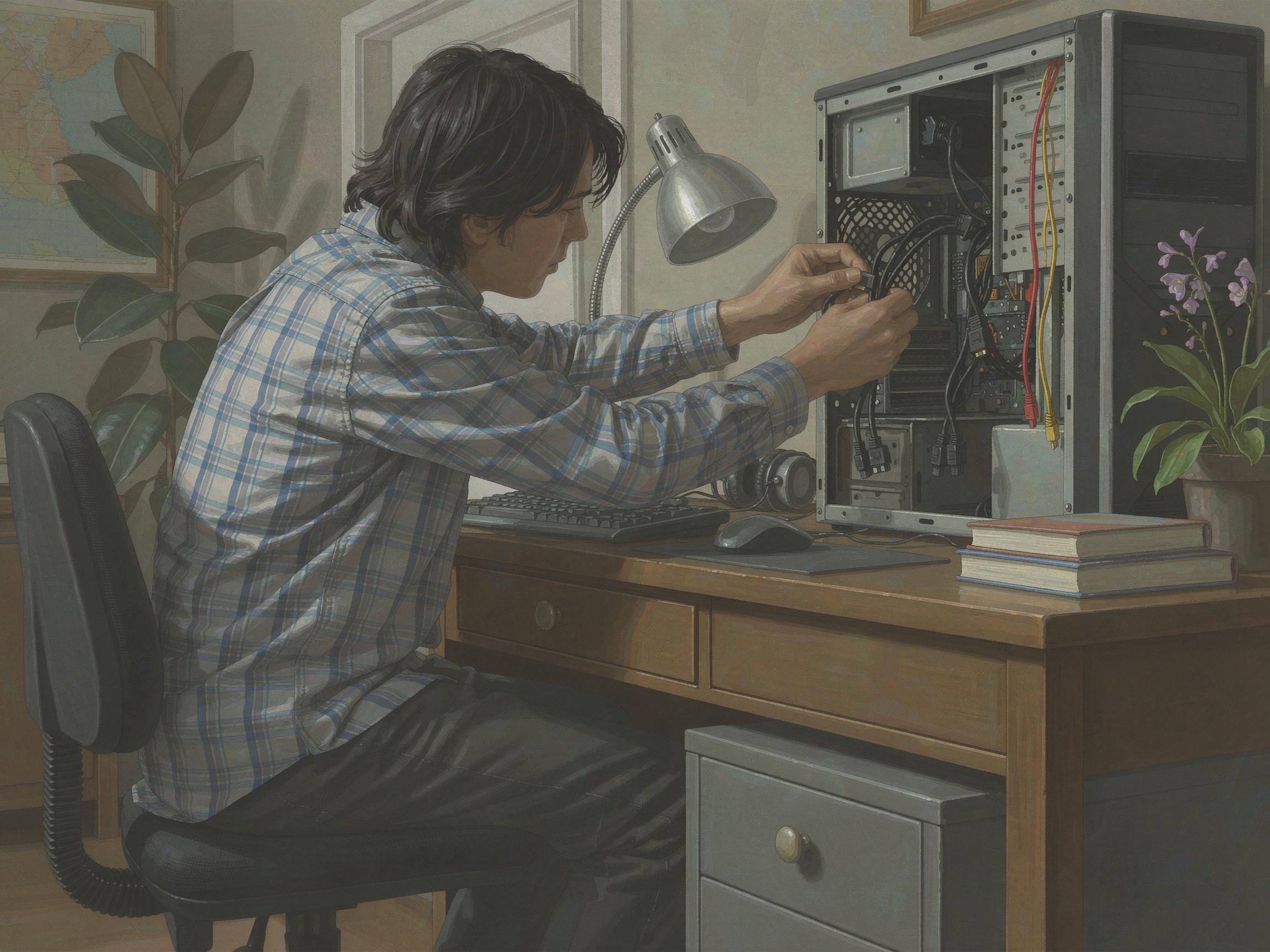
Check the Power Supply
If the computer randomly shuts off, the PSU may be failing. Check if power cables are securely connected. Replace the PSU if it is old or failing.
-
21
Reinstall the Operating System
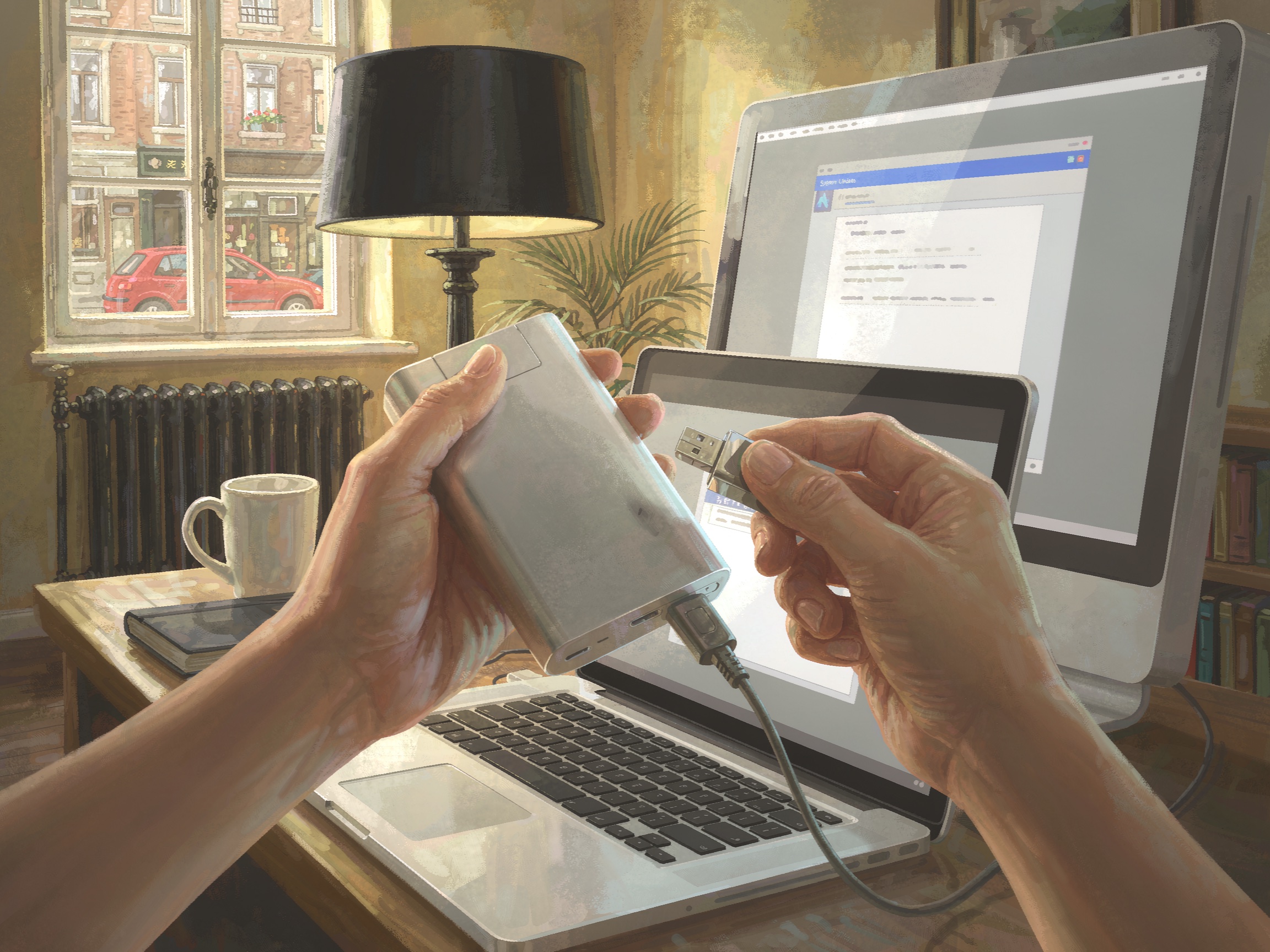
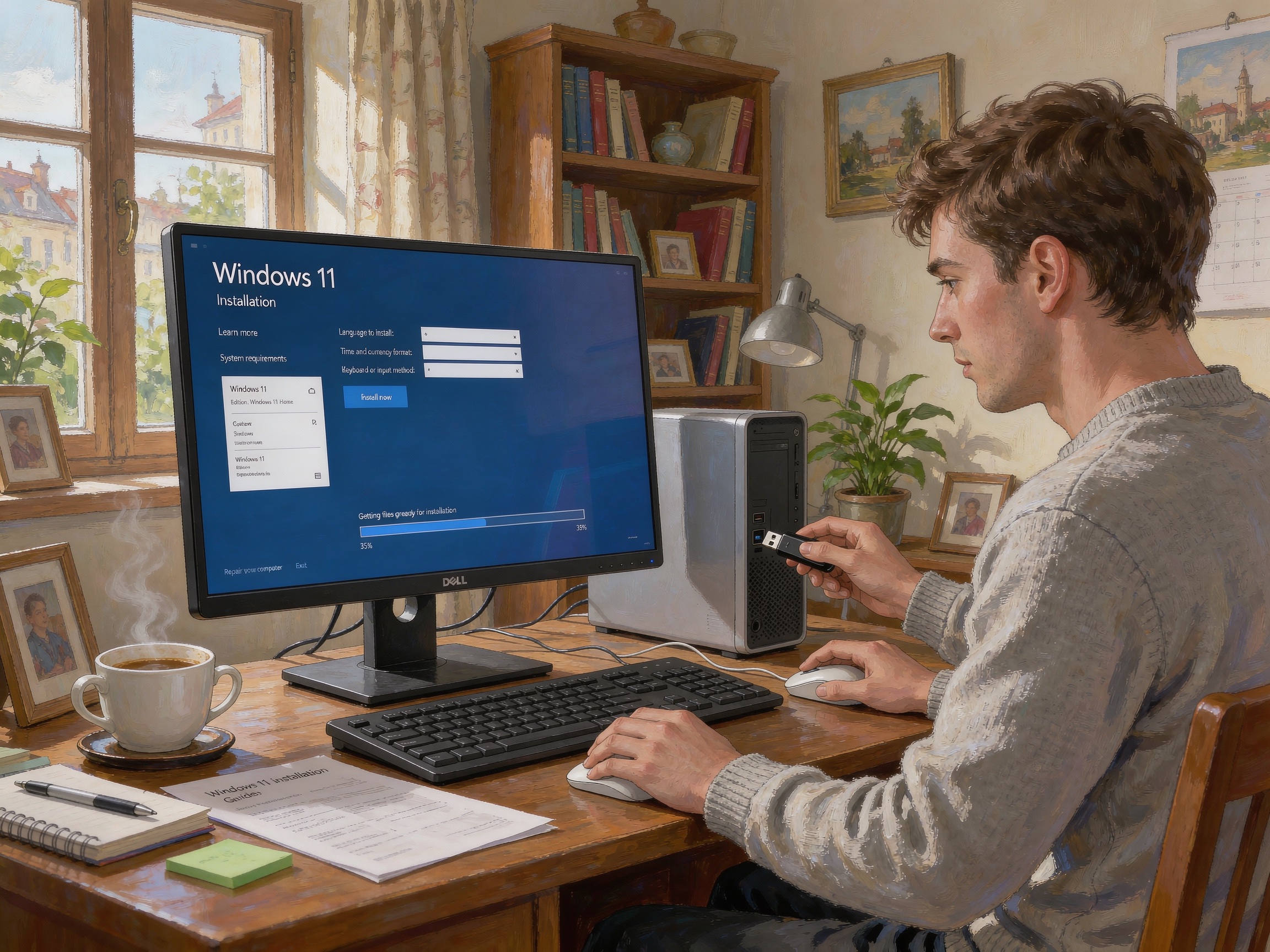
If all else fails, back up your data and perform a clean reinstall of Windows or macOS. This fixes most software issues but should be a last resort.
-
22
Back Up Your Data
Always maintain regular backups using cloud services, external drives, or system images. Data loss is more devastating than any computer problem.
-
23
Consult a Professional
If the problem involves hardware replacement, motherboard issues, or data recovery, consult a professional technician. Some problems require specialized tools and expertise.
-
24
Keep a Maintenance Routine
Update software monthly, run antivirus scans weekly, clean dust every 3 months, and back up data daily. Prevention is better than troubleshooting.
-
25
Document Your Solutions
Keep a record of problems you've solved and the steps that fixed them. This helps if the same problem occurs again and helps others troubleshoot.










Tips
- Always back up important data before attempting major repairs or reinstalls
- Take screenshots of error messages for reference
- One problem at a time — fixing one issue can reveal the next
- Keep a list of your software and drivers for easy reinstallation
Warnings
- Never open a desktop case while it is plugged in — risk of electrical shock
- Do not use a vacuum cleaner on computer components — it creates static electricity
- Don't use registry cleaners — they can cause more problems than they fix